2013 Release: User Guide of GMap Editor V2
Discuss everything about gMap Builder and interactive maps in our support forum.
You can add points to denote various locations on the map. The mouse will become a plus shape "+" for you to click and add the marker. Once you click, the default marker and popup box will appear.

Marker and Pop Up Box
In the pop up box, there are some settings you can change and add.
| Title | The title of this pop up information box. |
| Url | - Insert the url to direct your visitors to another website. - The website can be opened in either a New Window or the Same Window. - P.S. The info box will not pop up in the map when you fill in the url address in this area unless you select "mouse over" to show the popup box. |
| Category | You can assign marker to different Category ID or unassign it (unassign the category ID means the mark will always visible in the map). |
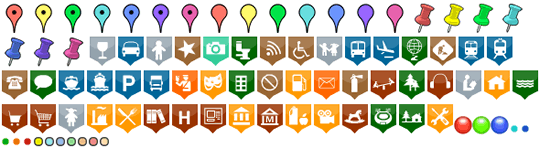
| Change Icon | The default icon can be changed to different styles and colors. Please click this
|
| Custom Icon |
Enter your image Url to add your image icon for custom icon. (Max height: 35px, Max width: 35px):
|
| Info Window Description | - Text information/description can be filled in this text area. - HTML mode: Use <br /> if you wish to insert a new line. All others HTML tags (e.g. <a> <strong> <em> <img> <p> <h1>-<h6> <ul> <ol> ) are supported. To insert an image into this popup box, you can use the following tag: - Preview mode: Use this mode to see your tag is correct or not. - Further text information HERE |
| Show when | Roll Over: when the mouse rollover this marker, the info box will pop up automatically. Mouse Click: when the mouse click on this marker, the info box will then pop up. |
Click OK to make confirm all changes.