


GMap Editor v1 User Guide > Data > Plot Routes
Plot routes on a map
Click "Import" button and Select "Import Polylines" in the dropdown menu
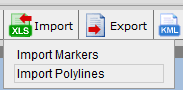
Start Import Polylines Panel
Select table to edit data
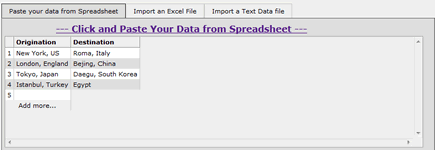
Table to show all data
Copy and Paste data from spreadsheet
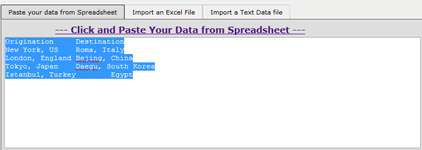
Paste map data from copying spreadsheet data
Import polylines/ route options
| Options | Description | ||||||
|---|---|---|---|---|---|---|---|
| Select rows to import: | Select the data rows for data importing | ||||||
| Type: | Set the polylines/ routes type:
|
||||||
| Polylines Style: |
Set the stoke style of polylines/ routes
|
||||||
| Add Marker on: | Enable show Marker in start/ end location. Also change marker icon. | ||||||
| Select Start Location: | Select the column(s) with polyline's/route's start location. | ||||||
| Select End Location: | Select the column(s) with polyline's/route's end location. |
 Drive (Route)
 Walk (Route)
 Bicycle (Route)
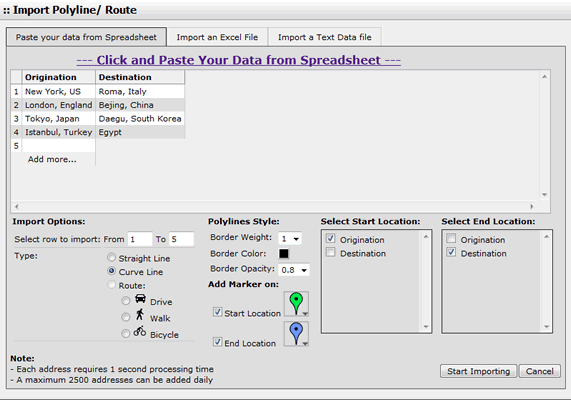
Setup polylines/ routes options
Start import the Excel file
- Click "Start importing" Button to import data
- To stop the importing, Click "Stop Importing" button.
[ Top of Page ]