Map Software |  Online Map Editor |  Interactive Map |  Register Map Program |  Reseller |  Version History |  Interactive Map FAQ |  User Guide |  HTML5 Mapping |  Custom Interactive Maps |  Contact
Interactive map: iMapBuilder map software. Create editable interactive maps, flash map and clickable image maps

iMapBuilder - Interactive Mapping Software

Build interactive flash maps and images in minutes with no coding

iMapBuilder for Windows, interactive map, map software, mapping software, provides interactive flash map, clickable map, editable world map, image map, image map tool  iMap online, map editor ,interactive map maker within browser, on-line map application, web based mapping tool, embed map to website
Loading
iMapBuilder software
interactive map software for website
iMapBuilder for Windows, interactive map, map software, mapping software, provides interactive flash map, clickable map, editable world map, image map, image map tool
iMap online, map editor ,interactive map maker within browser, on-line map application, web based mapping tool, embed map to website
interactive map software discussion forum Questions? Suggestions?
Discuss everything about iMapBuilder and interactive maps in our support forum.
iMapBuilder Interface
Sample of multi-level map


html5 interactive map software

  • Released On
  • 14th Jun 2013

Download free trial html5 interactive map software

Map making software with wide selection of country maps. Generate maps using easy editor for webpage or blog. Check latest map software feature release or watch online video tutorial for creating maps.


Create an interactive US map

Making an interactive US map is simple and easy, just follow the steps below and you will be making interactive US map in no time.


a) Download the software


Download and install iMapBuilder from its official website.
 
b) Using the Wizard
  1. Invoke the Wizard by selecting Show Wizard from the File menu.

    Note: The Wizard automatically opens each time you open the iMapBuilder - Interactive Flash Map Software. Using the Wizard you can also open projects saved and created earlier.

  2.  

  3. Click Create in the Create New Map Project panel.


  4.  
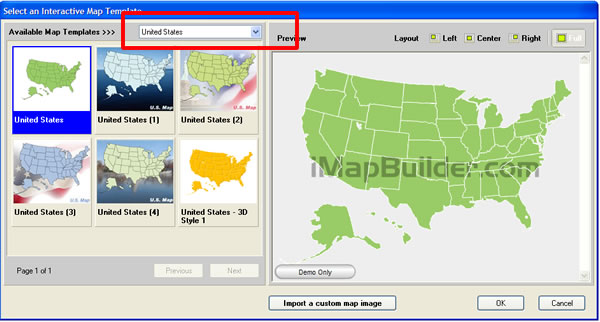
  5. Select your map on the left under Available Maps and a preview can be seen in the Preview window on the left. You can also filter the map by category, select the "United States " category on the right so that the layout of United States maps will be displayed. In the Preview window click any of the Layout buttons to align the map. You can also browse through the list of maps using the Next and Previous buttons .

    Note: that you can also align the in the Preview Panel of the main window using similar Layout buttons.


  6.  
  7. Click OK and the map is placed in the Preview Panel of the main window. Any layout selections made in the Select Your Map window are reflected. In the example Great Britain's map was selected and was left aligned in the layout to facilitate text to be written on the right.


  8.  
  9. You can now fine tune the map to suit your requirements for your website by using HTML tab (for HTML related properties) and the Map Options and Region Settings panel. For modifying the main information of your website template see the Editing Projects topic.

  10.  
  11. To save the project select Save As (Save if the project has already been saved) from the File menu or click the Save button on the Toolbar. The Save As button is also available on the Toolbar.
     
    Note: The default filename extension of the project file is *.fmp and by default is saved to the Project folder.


  12.  
  13. If you are saving the project for the first time the Windows Save As dialog opens where you can save the project file otherwise clicking the Save from the File menu or the Save button on the Toolbar saves the file without prompting for file name.

  14.  
  15. To close a saved project select Close from the File menu or by clicking the Close button on the Toolbar. If changes to a project file hasn't been made and an attempt to exit the program is made the following dialog is displayed.


  16.  
  17. Click Yes to save and exit.

  18.  


c) Using the conventional method
  1. Select New from the File menu or click New button on the Toolbar. The Select Your Map window opens.

  2.  
  3. Follow steps 3 to 9 in the previous method.